


Supabase
Connect Supabase as an access review source using a personal access token so the platform can list the members of your Supabase organization.
the platform reads your Supabase organization’s members through the Supabase Management API so you can review who has access.
Prerequisites
Section titled “Prerequisites”- the platform organization administrator access
- A Supabase account that is a member of the organization you want to review. Every organization role (Owner, Administrator, Developer and Read-Only) can list organization members. An unscoped personal access token has the same privileges as the account that created it
- The Organization Slug of the organization the platform should review, which the Connect dialog asks for alongside the token. Supabase puts it in the dashboard URL while the organization is open:
supabase.com/dashboard/org/<organization-slug>
Collected Fields
Section titled “Collected Fields”| the platform field | Supabase field | Notes |
|---|---|---|
| Name | user_name | The member’s Supabase user name. There is no fallback, so a member returned without one is listed with an empty name |
email | ||
| Role | role_name | The members endpoint returns one role name per member. Supabase’s organization roles are Owner, Administrator, Developer and Read-Only. the platform trims surrounding whitespace, and a member returned without a role name is listed without one |
| Admin | role_name | Flagged as an administrator when role_name is Owner or Administrator, and not for Developer or Read-Only |
| Status | Not supported | |
| MFA | mfa_enabled | Enabled when the flag is true, disabled otherwise. Supabase returns the flag for every member |
| Last login | Not supported | |
| External ID | user_id | Stable identifier used to track the account across reviews |
| Created at | Not supported |
Step 1: Create a Personal Access Token
Section titled “Step 1: Create a Personal Access Token”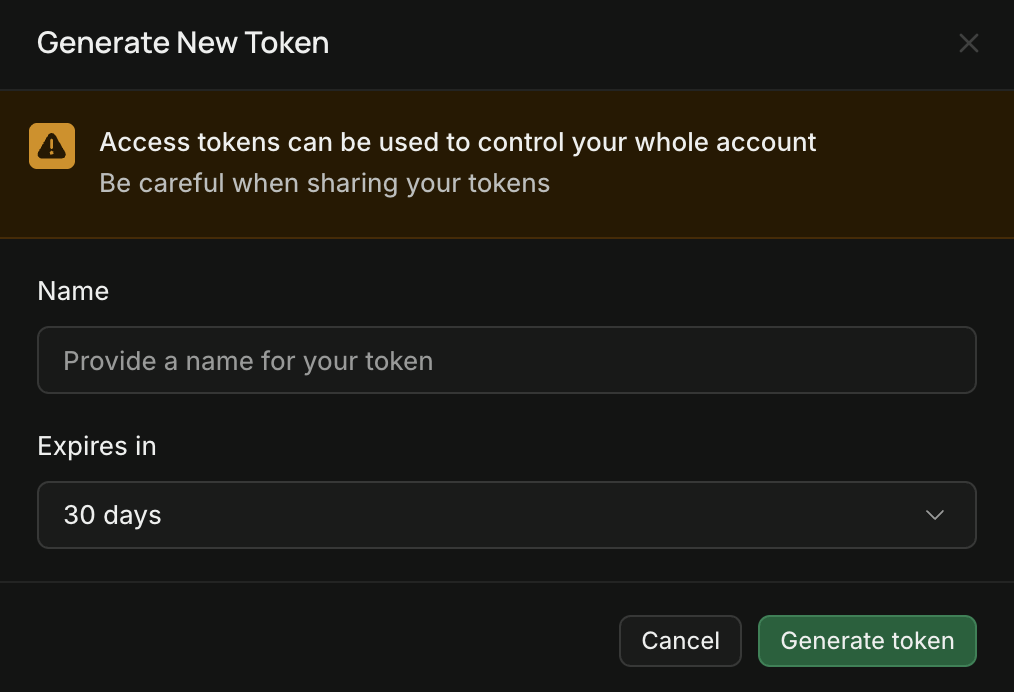
- In the Supabase dashboard, go to Account Settings > Access Tokens.
- Click Generate new token, enter a Name (e.g.
Probo Access Review), and set Expires in. The dialog defaults to 30 days, so pick a window that covers your review cycle, or Never. - Click Generate token, then copy the token (
sbp_...) and store it securely. Supabase shows it once and you cannot retrieve it afterwards.
Step 2: Connect in the platform
Section titled “Step 2: Connect in the platform”- In the platform, go to Access Reviews > Sources > Add Source.
- Find Supabase, click API Key, paste the token, enter your Organization Slug, and click Connect.
the platform names the source after your organization slug and pulls its members into your campaigns.
Troubleshooting
Section titled “Troubleshooting”- Token rejected. Confirm it is a personal access token (
sbp_...) and that it is still listed under Account Settings > Access Tokens. A project API key, whether publishable (sb_publishable_...), secret (sb_secret_...) or a legacyanonorservice_roleJWT, reaches only its own project and cannot read organization members. - No members appear. Check that the Organization Slug matches the value in the dashboard URL,
supabase.com/dashboard/org/<organization-slug>, and that the account that created the token still belongs to that organization. A personal access token inherits its owner’s access, so it stops reading the organization once that person leaves. - Syncs worked and then stopped. The Expires in field defaults to 30 days. Check whether the token is still listed on the Access Tokens page, then generate a replacement and update the source in the platform.
- A scoped token does not work. Supabase also issues scoped personal access tokens, whose access is narrower than the account’s own. If the token is scoped, generate an unscoped personal access token on the Access Tokens page and use that instead.